| LED Name |
LED color |
Description |
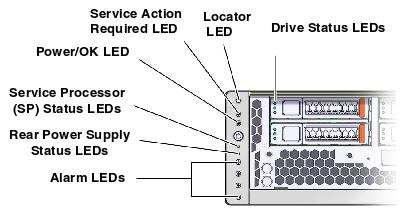
| Locator LED and Locator button |
| White |
Enables you to identify a particular server. To activate:
Pressing and holding the Locator button for 5 seconds initiates a test of all LEDs in the LED assembly .
The Locator LED can be turned on to identify a particular system. When on, the LED blinks rapidly .
|
| Service Action Required LED |
Amber |
Indicates that service is required.
The Oracle ILOM show faulty command provides details about any faults that cause this indicator to light.
Under some fault conditions, individual component fault LEDs are turned on in addition to the Service Action Required LED.
|
| Power/OK LED |
Off |
Indicates that the server is not running in its normal state. System power might be off. The SP might be running. |
| Green - Steady On |
Normal Operating State. |
| Green - Slow Blink |
Indicates that a normal transitory activity is taking place
- system diagnostics, or the system is booting. |
| Green - Fast Blink |
ndicates that the server is running in standby mode and can be
quickly returned to full function. |
| Rear Power Supply Status LED |
Amber |
On - Indicates a fault with one of the power supplies.
Off - Indicates a steady state, no service action is required. |
| Service Processor (SP) Status LED |
Green |
Flashing - Indicates the SP is booting.
Steady - Indicates the SP booted and OK, no service action is required. |
| Alarm:Critical LED |
Red |
Indicates a critical alarm condition. |
| Alarm:Major LED |
Red |
Indicates a major alarm condition. |
| Alarm:Minor LED |
Amber |
Indicates a minor condition. |
| Alarm:User LED |
Amber |
Indicates a user alarm condition.
|
| Drive Status LEDs |
Ready to Remove LED (top Blue) |
Indicates that the drive can be removed during a hot-plug operation.
|
| Service Required LED (middle, amber)
|
Indicates that the drive has experienced a fault condition.
|
| OK/Activity LED (bottom, green)
|
Indicates that a normal transitory activity is taking place
- system diagnostics, or the system is booting. |
| LED Name |
LED Color |
Description |
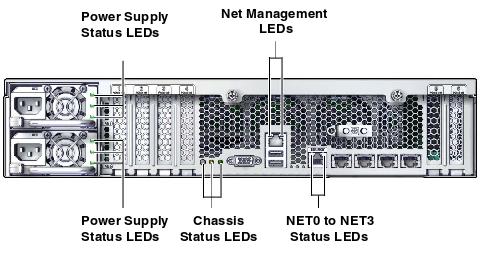
| Power Supply LEDs |
| Output Power OK |
Top, Green |
On - Normal operation. Output power is without fault.
|
| Service Action Required |
Middle, Amber |
Indicates that service for the power supply is required. POST and Oracle ILOM are two
diagnostic tools that can detect a fault or failure resulting in this indication.
The Oracle ILOM show faulty command provides details about any faults that cause this
indicator to light.
|
| AC or DC Input Power OK LED
OK |
Bottom, Green |
Indicates that input power is without fault.
|
| Chassis Status LEDs |
| Locator LED/ Locator button |
Left, White |
The Locator LED can be turned on to identify a particular system. When on, the LED blinks
rapidly. There are two methods for turning a Locator LED on:
Typing the Oracle ILOM command set /SYS/LOCATE value=Fast_Blink
Pressing the Locator button
|
| Service Action Required LED |
Center, Amber |
Indicates that service is required. POST and Oracle ILOM are two diagnostics tools that can detect a fault or failure resulting in this indication.
The Oracle ILOM show faulty command provides details about any faults that cause this indicator to light.
Under some fault conditions, individual component fault LEDs are turned on in addition to the
Service Required LED.
|
| Main Power/OK LED |
Right, Green |
Indicates these conditions:
Off - System is not running in its normal state. System power might be off. The SP might be running.
Steady on - System is powered on and is running in its normal operating state. No service actions are required.
Fast blink - System is running in standby mode and can be quickly returned to full function.
Slow Blink - A normal but transitory activity is taking place. Slow blinking might indicate that system diagnostics are running or that the system is booting.
|
| Net Management LEDs |
| Link and Activity LED
|
Left, Amber |
Indicates these conditions:
On or blinking - A link is established.
Off - No link is established.
|
| Speed LED
|
Right, Green |
Indicates these conditions:
On or blinking - The link is operating as a 1000-Mbps connection.
Off - The link is operating as a 100-Mbps connection.
|
| NET0 to NET3 Status LEDs
|
| Link and Activity LED
|
Left, Green |
Indicates these conditions:
On - A link is established.
blinking - Indicates activity on the link.
Off - No link is established.
|
| Speed LED
|
Right, Amber/Green |
Indicates these conditions:
Green - The link is operating as a 1000-Mbps connection.
Amber - The link is operating as a Gigabit connection (1000-Mbps).
Off - The link is operating as a 100-Mbps connection or there is no link.
|